 AutoCaption
How to make an SRT file on Android
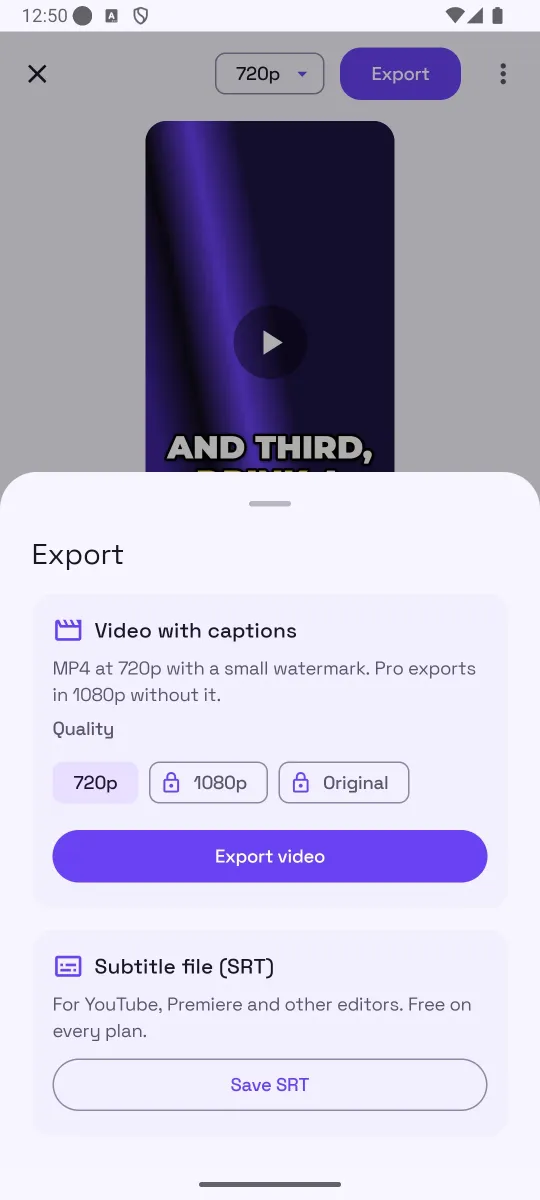
Short answer: Transcribe the video in an auto-caption app and export the result as an SRT instead of a burned-in video. In AutoCaption: generate captions, fix any wrong words, tap Export, then “Save SRT” under Subtitle file (SRT). SRT export is free on every plan, and on Android 10 and later the file is saved to Downloads/AutoCaption as well as offered in the share sheet.
What an SRT file is
SRT (SubRip Subtitle) is the most widely accepted subtitle format. It is a plain text file with numbered entries. Each entry has a start and end time and one or more lines of text:
1
00:00:00,000 --> 00:00:01,420
Hey everyone,

2
00:00:01,460 --> 00:00:03,900
welcome back to the channel.
Because the text is separate from the video, viewers can turn it on and off, search engines and players can read it, and you can change a word without re-exporting the video. That is why YouTube, Vimeo, LinkedIn and most desktop editors accept SRT uploads.
Step by step
- Create the captions. In AutoCaption, tap “Create captions”, pick the video, choose the spoken language and tap Generate.
- Fix the words first. Anything you correct in the Edit panel is what goes into the file.
- Set the line layout you want. The SRT mirrors the caption pages you see on the video, so “Words per line” and “Lines” in the Layout panel decide how long each SRT entry is.
- Tap Export → “Save SRT”. The file is named after your video with an .srt extension.
- Save or share it. On Android 10 and later it lands in Downloads/AutoCaption and the share sheet opens; pick Drive, email, or your editor. On Android 8 and 9, share it to keep a copy.
Using the SRT
- YouTube: in YouTube Studio open the video, go to Subtitles, choose the language and upload the file “with timing”.
- Video editors: Premiere Pro, DaVinci Resolve, CapCut and others import SRT onto a subtitle track, where you can restyle it.
- Messaging apps: WhatsApp and Instagram do not read SRT files. For those, export the MP4 with captions burned in instead; see how to burn subtitles into a video on Android.
Tips
- Export the SRT from the same cut of the video you upload. If you trim the video later, the timestamps will be off by the trimmed amount.
- Keep each entry short. Two lines of a few words each is comfortable to read; the Layout panel controls this.
- Edit the file only in a plain-text editor. Word processors can add formatting and change the encoding.
- Keep the file name matching the video; many players auto-load
video.srtnext tovideo.mp4.
Common mistakes
- Uploading an SRT made from a different cut of the video.
- Saving the file with a non-UTF-8 encoding and breaking Hindi, Arabic or accented characters.
- Expecting word-by-word highlight in an SRT. Players show one entry at a time.
How AutoCaption helps
AutoCaption writes one SRT entry per caption page, exactly as the captions appear in the video, with ASCII timestamps that every player accepts and UTF-8 text for any script. SRT export is free on every plan, and the same project can also be exported as a burned-in MP4 later.
Try it on your own clip
AutoCaption is free to start on Android 8.0 and later: 2 caption minutes a day, about 100 spoken languages, SRT export on every plan. Pro is an in-app subscription billed through Google Play.

Frequently asked questions
Is SRT export free in AutoCaption?
Yes. The export sheet says it plainly: “For YouTube, Premiere and other editors. Free on every plan.” The free plan's watermark applies only to exported videos, not to SRT files.
Where is the SRT saved on my phone?
On Android 10 and later the file is saved to Downloads/AutoCaption and also offered in the share sheet. On Android 8 and 9 it is shared only, so pick Drive, email or another app to keep a copy.
Does the SRT keep word-by-word timing?
The SRT format has one timestamp pair per caption, not per word. AutoCaption writes one entry per caption page, exactly as the captions appear in the video, including line breaks. Word-level animation is only possible in the burned-in MP4.
Can I edit the SRT afterwards?
Yes. It is a plain UTF-8 text file. Open it in any plain-text editor, or re-open the project in AutoCaption, fix the words there, and save the SRT again.