 AutoCaption
How to add captions to a video on Android
Short answer: Install an auto-caption app, pick the video from your gallery, choose the spoken language, and let the app transcribe it. Then fix any wrong words, choose a style, and export either an MP4 with the captions burned in or an SRT subtitle file. With AutoCaption the transcription for a short clip takes seconds and the whole flow happens on your phone.
Three ways to caption a video on a phone
Before the steps, it helps to know what you are choosing between. Each option trades effort for control.
| Method | Effort | Works outside the platform? | Styling and word timing |
|---|---|---|---|
| Type captions by hand in a video editor | High: you type every line and set every timestamp | Yes | Whatever the editor offers, but no automatic word timing |
| The platform's built-in captions (Instagram, TikTok, YouTube) | Low | No: captions stay inside that app or player | Limited styles, usually line-level timing |
| An auto-caption app on the phone | Low: transcribe, then fix a few words | Yes: burned-in MP4 or an SRT file | Templates, fonts, word-by-word highlighting |
The rest of this guide uses the third option, with AutoCaption as the example. The steps are similar in other auto-caption apps; the details about limits, folders and panels are specific to AutoCaption 1.0.0.
Step by step
- Open the app and tap “Create captions”. The system photo picker opens with videos only. AutoCaption does not ask for a storage permission; it only receives the one file you choose.
- Pick the clip. The app copies the video, reads its length, and warns you if it is longer than your plan allows (60 seconds free, 10 minutes with Pro).
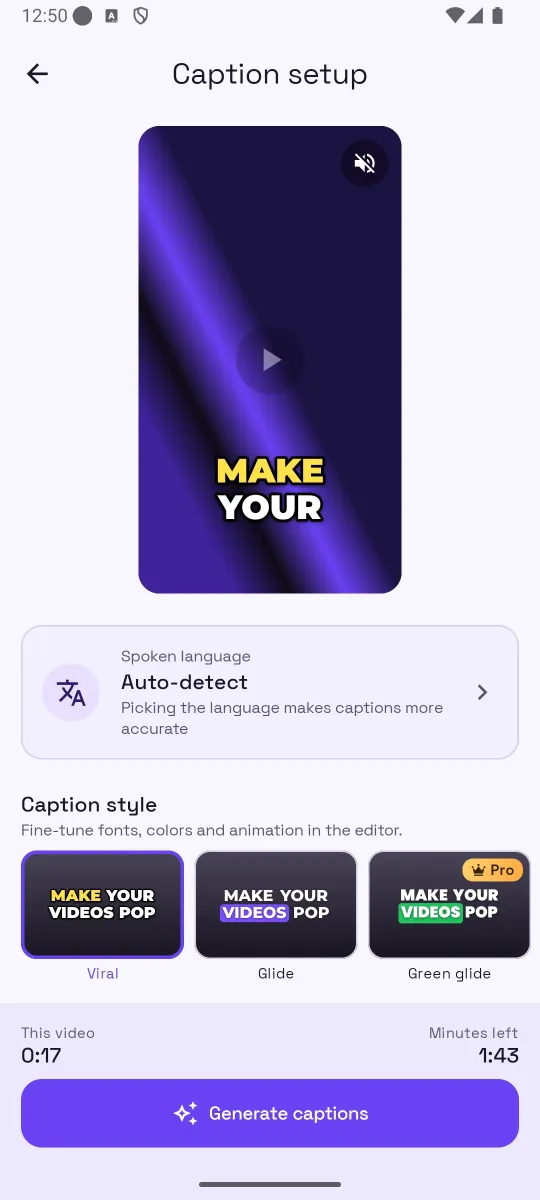
- Choose the spoken language and a look. On the Caption setup screen you can leave “Auto-detect” or pick the language people speak in the clip. Picking it explicitly makes captions more accurate, especially for short clips and mixed-language speech. Then choose one of the featured caption styles. The screen also shows how many minutes the clip needs and how many you have left.
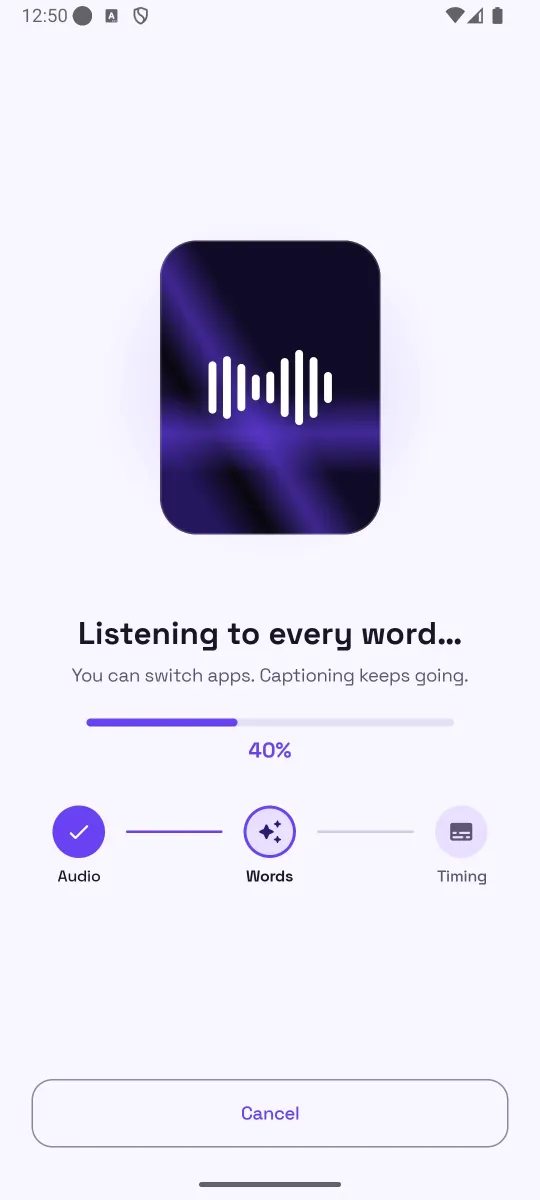
- Tap “Generate captions”. A progress screen shows three stages: Audio, Words and Timing. You can switch apps; captioning keeps going.
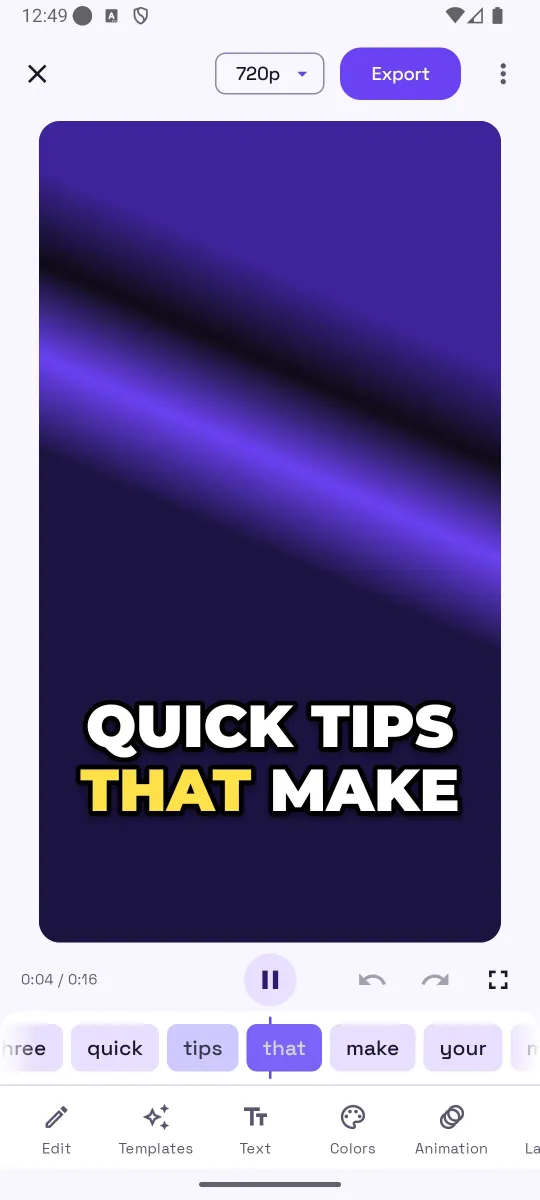
- Check the words. The editor opens with the video playing and the captions drawn on it. A word strip under the player follows playback. Tap a word to jump to it; open the Edit panel to change a word, split or merge lines, or add a caption at the playhead.
- Style and export. Use Templates, Text, Colors, Animation and Layout to change the look, then tap Export. Choose “Video with captions” for an MP4 with the captions burned in, or “Subtitle file (SRT)” for a separate file you can upload to YouTube or import into an editor.
Tips for better captions
- Pick the language instead of relying on Auto-detect when the clip is short or when people switch between languages. Detection needs a few seconds of clear speech to be sure.
- Record with the phone close to the speaker. Background music and wind are the most common reasons for wrong words. If you can, caption the raw clip before adding music.
- Keep two or three words per line on vertical video. Large text with few words is easier to read at phone size than full sentences. In AutoCaption this is the “Words per line” setting in the Layout panel.
- Move captions away from the platform's own UI. On Reels, Shorts and TikTok the bottom and right edge are covered by buttons and the description. Drag the captions up a little in the editor.
- Check names, numbers and brand words. These are the words speech models get wrong most often. They take seconds to fix in the Edit panel.
Common mistakes
- Exporting before reading the transcript. Once captions are burned in, a wrong word is permanent. Read the word strip once before you export.
- Choosing a decorative font for long sentences. Bold, simple fonts stay readable when the video is compressed by a social platform.
- Low contrast. White text on a bright background disappears. Use an outline, a shadow or a background box; AutoCaption's templates include all three.
- Burning captions into a video that needs an SRT. For YouTube or an editing timeline, export the SRT instead, so captions stay editable and searchable. See how to make an SRT file on Android.
How AutoCaption helps
AutoCaption does the whole flow above on an Android phone. Every word gets its own start and end time, so captions can highlight word by word while you speak; the preview and the export use the same caption engine; and the video never leaves your device, because only the audio track is uploaded for transcription and it is not kept afterwards. The free plan includes 2 caption minutes a day, 8 templates, every font and color, SRT export, and 720p video export with a small watermark. Pro adds 300 minutes a month, clips up to 10 minutes, all 63 templates, no watermark, 1080p or original-quality export, and no ads.
Try it on your own clip
AutoCaption is free to start on Android 8.0 and later: 2 caption minutes a day, about 100 spoken languages, SRT export on every plan. Pro is an in-app subscription billed through Google Play.

Frequently asked questions
Do I need a computer to add captions to a video?
No. Everything in this guide happens on the phone: picking the video, transcribing, editing words, styling and exporting. A computer is only useful if you want to edit the SRT file in a desktop subtitle editor afterwards.
How long does it take to caption a video?
Transcription for a clip under a minute usually finishes in seconds, depending on your connection. AutoCaption shows the progress (Audio → Words → Timing) and you can switch apps while it runs.
Can I add captions to a video that is longer than a minute?
On AutoCaption's free plan a clip can be up to 60 seconds; Pro raises that to 600 seconds (10 minutes). For longer videos, trim the clip first in your gallery app or caption it in parts.
Will the captions look the same in the exported video as in the preview?
In AutoCaption, yes: the editor preview and the exported MP4 use the same caption engine, so fonts, colors, animation and position match.