 AutoCaption
How to fix wrong words in auto captions
Short answer: Do not regenerate; edit. Play the clip, watch the word strip, and when a word is wrong open the Edit panel, tap the line and change the text. Split or merge lines if the phrasing is off, and add a caption at the playhead if something was skipped. Only regenerate with a different spoken language when the whole transcript is in the wrong language.
Why automatic captions make mistakes
- Noise and music. Background sound masks consonants, and the model fills the gap with a likely word.
- Names, brands and jargon. Rare words get replaced by common ones that sound alike.
- Numbers. “Fifteen” and “fifty”, dates, prices and units are frequent errors.
- Mixed languages. Hinglish, Spanglish and code-switching confuse language detection and spelling.
- Overlapping speakers and fast speech. Two voices at once or very fast delivery lose words.
- Wrong language detected. A short clip with an accent or a mix of languages can be detected as the wrong language entirely.
Prevent what you can
- Pick the spoken language on the setup screen instead of Auto-detect, especially for short or mixed clips.
- Caption the raw clip before you add music.
- Record close to the speaker; a phone 30 cm away sounds very different from one at arm's length.
- Say names and numbers a touch slower than the rest.
Fix the rest in the editor
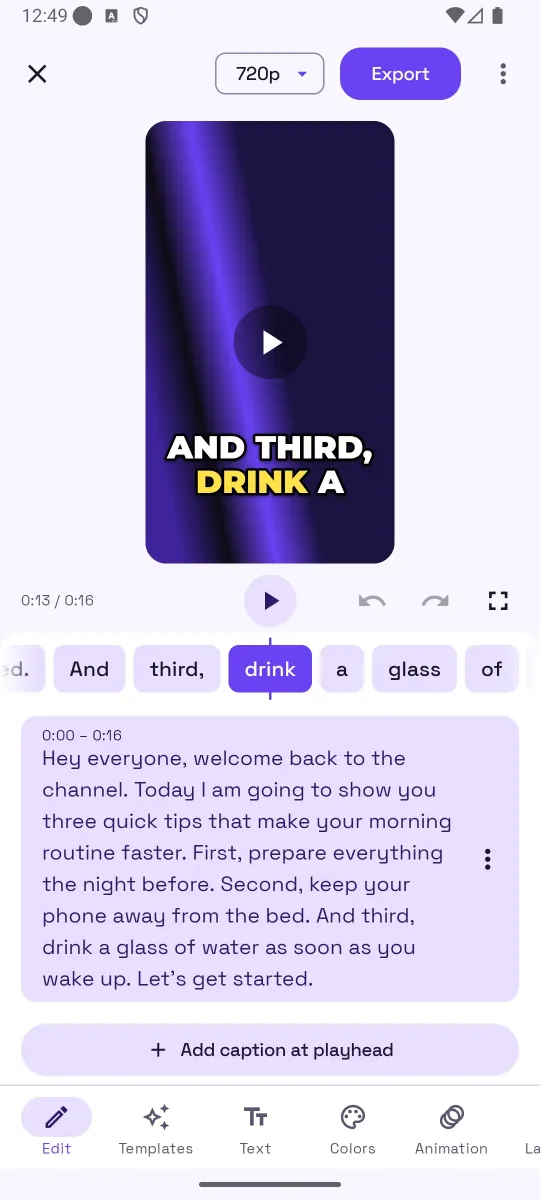
- Play the clip and read along. The word strip under the video highlights each word as it is spoken, so mistakes jump out. Tap a word to scrub to it.
- Open the Edit panel and tap the line. Change the text, then confirm. The words keep their timing.
- Split or merge lines when a phrase is cut in an odd place. Each line becomes a caption page in the video and an entry in the SRT.
- Add a caption at the playhead when something was skipped entirely. Scrub to the moment, add the line, type the words.
- Delete lines that caption noise, filler or a false start.
- Use undo and redo freely. Edits save automatically.
- Regenerate only as a last resort. Editor menu → “Change language and regenerate” starts over with a different spoken language. It uses minutes again and replaces your edits.
Tips
- Fix the first five seconds first. That is where viewers decide whether to keep watching.
- Keep spelling consistent for names across the whole clip.
- Check numbers against what was actually said, not what looks right.
- Export the SRT after fixing; the same corrections go into the file.
Common mistakes
- Regenerating the whole transcript to fix three words, and losing earlier edits.
- Fixing text after the export has already started; the running export uses the earlier version.
- Correcting the word but leaving an odd line break that splits a name across two pages.
How AutoCaption helps
AutoCaption's word strip makes errors visible as the video plays, and the Edit panel changes text without touching timing, so word-by-word effects stay in sync. Lines can be split, merged, added at the playhead or deleted, with undo and redo. If the spoken language was wrong, “Change language and regenerate” in the editor menu starts over after a confirmation.
Try it on your own clip
AutoCaption is free to start on Android 8.0 and later: 2 caption minutes a day, about 100 spoken languages, SRT export on every plan. Pro is an in-app subscription billed through Google Play.

Frequently asked questions
Why do auto captions get names and brands wrong?
Speech models predict likely words from sound. A name or product that is rare in everyday speech is replaced by a common word that sounds similar. The fix is a quick edit; prevention is speaking the name clearly and, if you can, with a short pause around it.
Does editing a word change its timing?
No. In AutoCaption, editing the text keeps the word's start and end time, so word-by-word effects stay in sync. If you split or merge lines, the words keep their timing and only the caption pages change.
Can I undo an edit?
Yes. Edits save automatically and the editor has undo and redo buttons next to the playback controls.
When should I regenerate instead of editing?
When the wrong spoken language was detected and most words are nonsense, use the editor menu's “Change language and regenerate”. It uses caption minutes again and replaces your current captions and edits, so only do it when editing would take longer.