 AutoCaption
How to auto-caption Instagram Reels on Android
Short answer: Caption the clip before you upload it. Pick the vertical video in an auto-caption app, generate captions, move them above Instagram's bottom UI, choose a bold two-or-three-words-per-line style, and export an MP4. The captions are then part of the video, so they show in Reels, in Stories, in a WhatsApp forward and anywhere else the file goes.
Why caption Reels at all
A lot of Reels are watched on mute: in a feed, on a commute, in a waiting room. Captions let a viewer follow you with the sound off and give them a reason to stop scrolling in the first second. Word-by-word captions also make the pace of your speech visible, which keeps attention on fast talking-head clips.
You have two places to add them: inside Instagram with its caption sticker, or before upload by burning them into the video. Burned-in captions are the ones you can style, and they stay with the file wherever it is shared. This guide covers that route.
Step by step
- Record or trim a vertical clip. Keep it under 60 seconds on AutoCaption's free plan, or up to 10 minutes with Pro. Caption the clip before you add music, so the speech is clean.
- Open AutoCaption and tap “Create captions”. Pick the clip from the picker.
- Pick the spoken language. Leave Auto-detect for a single, clearly spoken language; choose the language explicitly if the clip is short or mixes languages.
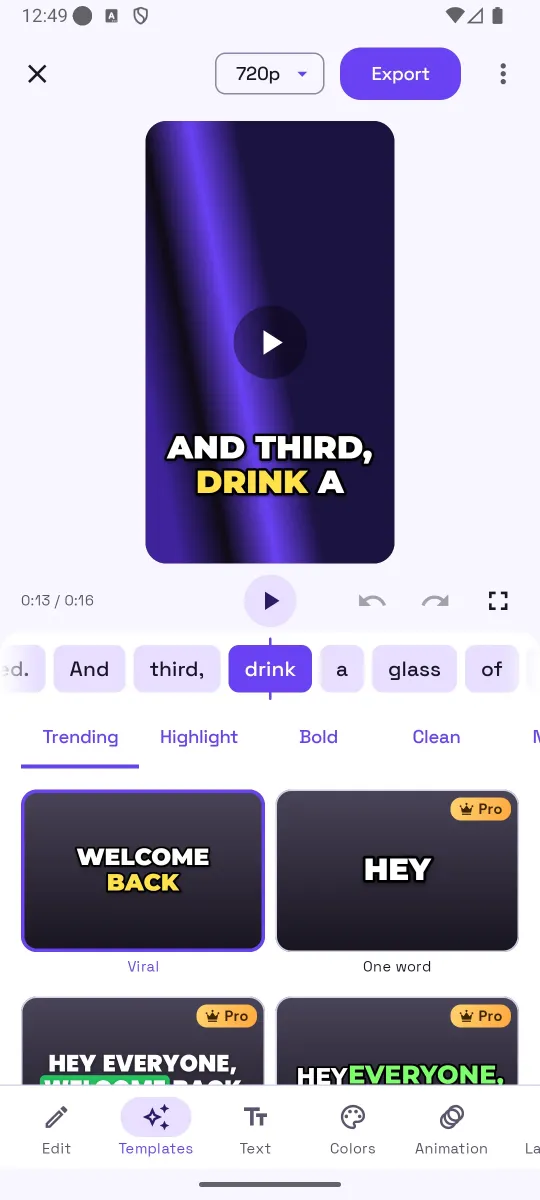
- Choose a look made for vertical video. The Trending, Highlight and Bold categories are designed for Reels-style clips: big text, strong outline, a highlighted current word. You can change it later in the Templates panel.
- Generate and fix words. Read the word strip once. Fix names and brand words in the Edit panel.
- Set words per line and position. In Layout, set 2–3 words per line and one or two lines. Drag the caption block up so it sits above where Instagram places the description and buttons.
- Export the MP4. Tap Export → “Video with captions”. Free exports are 720p with a small watermark; Pro exports 1080p or original quality without it. The file is saved to Movies/AutoCaption on Android 10 and later and can be shared straight to Instagram.
Tips that make a difference on Reels
- Stay inside the safe zone. Instagram overlays your username, description, audio name and the like/comment/share buttons on the lower part and right edge of the frame. Keep captions roughly in the middle of the screen so nothing is covered.
- Use a highlight color that is not in your background. Yellow on dark footage and a brand color on light footage read well. In the Colors panel you can set the text, highlight, outline, shadow and box colors separately.
- Pick one animation and keep it. A word highlight or a short entrance is enough. Changing effects every line looks busy.
- Make the first caption land in the first second. Viewers decide fast. If your clip starts with silence, trim it.
- Export at 1080p when you can. Instagram compresses uploads; starting from a higher-quality file keeps the text edges sharp. That is a Pro setting in AutoCaption.
Common mistakes
- Captions at the very bottom, hidden behind the description.
- Full sentences in small text that nobody can read at phone size.
- Adding music before captioning, which makes the transcription worse.
- Exporting a horizontal clip and letting Instagram crop it, which cuts off side-aligned captions.
How AutoCaption helps
AutoCaption keeps the clip's 9:16 aspect ratio, times every word so highlight effects stay in sync, lets you drag and pinch the captions on the video, and exports with the same caption engine that drew the preview. The Templates panel groups looks into Trending, Highlight, Bold, Clean, Neon, Boxed, Fun and Elegant, with 8 templates free and the rest in Pro.
Try it on your own clip
AutoCaption is free to start on Android 8.0 and later: 2 caption minutes a day, about 100 spoken languages, SRT export on every plan. Pro is an in-app subscription billed through Google Play.

Frequently asked questions
Should I use Instagram's own captions or burn them in?
Instagram's caption tools work only inside Instagram and give you a limited set of styles. Burned-in captions travel with the video file, so the same clip works on Reels, Stories, YouTube Shorts, TikTok and WhatsApp. Many creators use both: burned-in captions for style, plus the platform's captions for accessibility settings.
What aspect ratio should the exported Reel be?
Reels are vertical, 9:16. AutoCaption exports at the clip's own aspect ratio, so if you record vertically the export stays 9:16. Trim or crop in your gallery app first if the source is horizontal.
Where should captions sit on a Reel?
In the middle to lower-middle of the frame, above the caption text and action buttons that Instagram draws over the bottom of the screen, and away from the right edge. In AutoCaption you can drag the captions on the video to move them.
Does the free plan work for Reels?
Yes. Free accounts can caption clips up to 60 seconds, 2 minutes a day, and export at 720p with a small “Made with AutoCaption” watermark. Pro removes the watermark and exports at 1080p or original quality.