 AutoCaption
How to burn subtitles into a video on Android
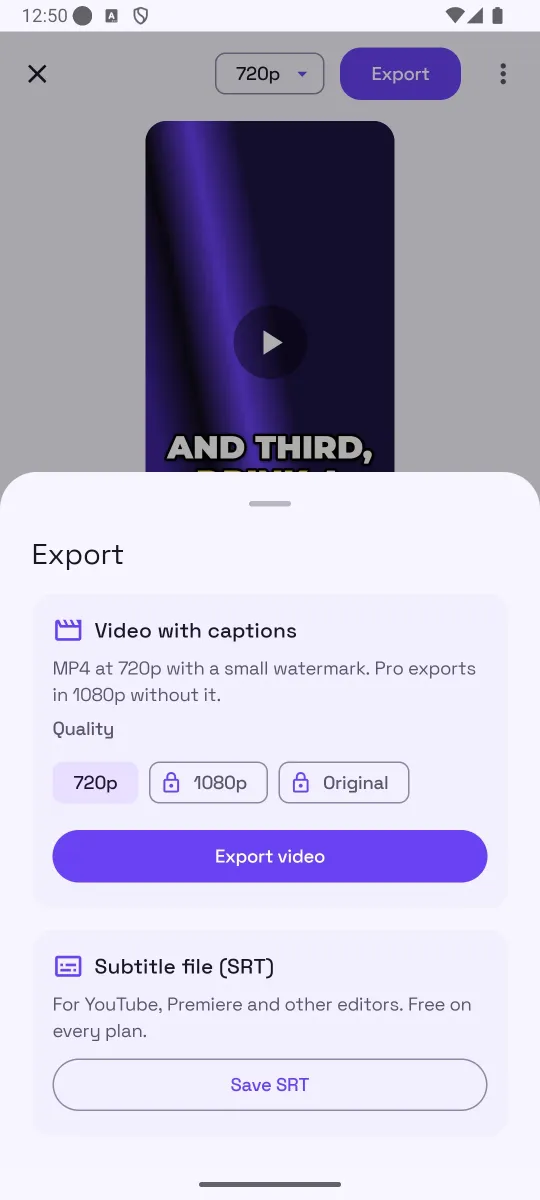
Short answer: Burning (hardcoding) subtitles means rendering the text into the video frames, so it shows in any player. On Android, use an auto-caption app that exports an MP4: transcribe the clip, fix the words, choose a style, then export “Video with captions”. In AutoCaption the free plan exports 720p with a small watermark; Pro exports 1080p or original quality without it.
Open captions vs. closed captions
| Burned-in (open) captions | SRT (closed) captions | |
|---|---|---|
| Where they show | Everywhere the video plays | Only in players that load the file |
| Styling | Fonts, colors, animation, position: whatever you choose | Decided by the player |
| Word-by-word highlight | Yes | No |
| Can be turned off | No | Yes |
| Editable after export | No: re-export | Yes: plain text |
| Best for | Reels, Shorts, TikTok, WhatsApp, Stories | YouTube, editing timelines, accessibility |
Step by step
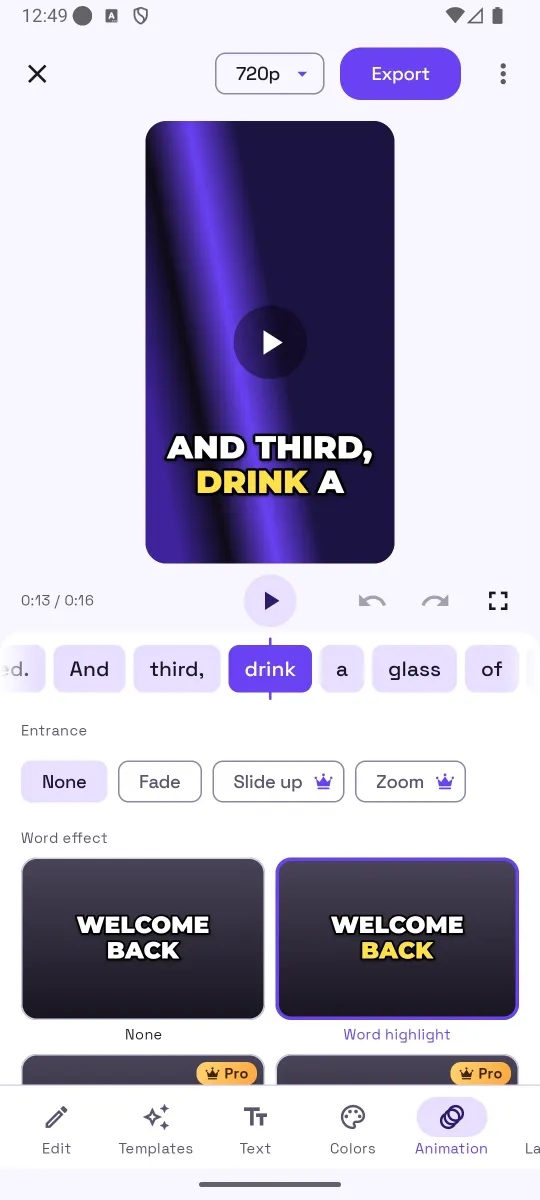
- Generate the captions. In AutoCaption, pick the video, choose the spoken language, tap Generate.
- Fix every wrong word first. Burned-in text cannot be changed later. Read the word strip; fix names and numbers in the Edit panel.
- Choose the look. Templates sets the overall style; Text, Colors, Animation and Layout fine-tune it. Drag the caption block on the video to position it; pinch to resize.
- Tap Export → “Video with captions”. Pick the quality: 720p on the free plan, 720p / 1080p / Original with Pro. Tap “Export video”.
- Wait for the render. The sheet shows real progress with a Cancel button. You can close it; the export keeps going.
- Share or find the file. When it is ready, share it from the sheet, or find it in the gallery under Movies/AutoCaption on Android 10 and later.
Tips
- Pick the output quality for the destination. 720p is fine for WhatsApp; use 1080p or original for Reels and Shorts so the text stays sharp after the platform re-compresses it.
- Make text readable at thumbnail size. Bold font, an outline or box, two or three words per line.
- Keep captions off platform UI. Move them up from the bottom edge on vertical video.
- Keep the project. If you notice a typo after posting, open the project in AutoCaption, fix it and export again instead of starting over.
Common mistakes
- Exporting before proofreading.
- Burning captions into a video that is going to YouTube, where an SRT would be more useful and searchable.
- Using a Pro-only look on the free plan and being surprised by the upgrade prompt. AutoCaption offers to switch to the closest free look before exporting.
- Starting an export and then editing: those edits are not in the file that is already rendering.
How AutoCaption helps
AutoCaption renders the export with the same caption engine that draws the editor preview, so what you see is what gets burned in. Exports show real progress and can be cancelled, run in the background, and are saved to Movies/AutoCaption on Android 10 and later. Free exports are 720p with a small “Made with AutoCaption” watermark; Pro exports 720p, 1080p or original quality without it.
Try it on your own clip
AutoCaption is free to start on Android 8.0 and later: 2 caption minutes a day, about 100 spoken languages, SRT export on every plan. Pro is an in-app subscription billed through Google Play.

Frequently asked questions
What is the difference between burned-in and SRT subtitles?
Burned-in (open) captions are part of the picture; every viewer sees them and they cannot be turned off or edited later. SRT (closed) captions are a separate file that players can show, hide and search. Use burned-in for social platforms and messaging apps; use SRT for YouTube and editing timelines.
Does burning in reduce video quality?
The video is re-encoded, so quality depends on the export setting. AutoCaption exports 720p on the free plan and 720p, 1080p or original quality with Pro. Start from the best source you have.
Can I keep using the phone while the video exports?
Yes. In AutoCaption you can close the export sheet and the export keeps going in the background. Edits you make after starting the export are not included in that file.
Where does the exported video go?
On Android 10 and later it is saved to the gallery in Movies/AutoCaption when that setting is on, and you can share it from the export sheet. The finished file can also be shared directly to Instagram, WhatsApp or any other app.