 AutoCaption
What to look for in an auto caption app for Android
Short answer: Judge an auto caption app on six things: word-level timing, the languages you actually speak, how fast you can fix a wrong word, whether it exports both a burned-in MP4 and an SRT, what happens to your video file, and whether the free tier and the paid tier are explained before you start. Test each one on a 30-second clip of your own before you commit.
The checklist
Each item below includes a five-minute test. Run them on the same short clip in every app you are considering.
1. Word-level timing
Line-level timing is enough for plain subtitles, but word-level timing is what enables karaoke-style highlighting, tap-to-scrub editing and clean line breaks. Test: after transcription, can you tap a single word and have the video jump to it?
2. The languages you actually use
“100+ languages” is only useful if yours is among them and the script renders correctly. Test: caption a clip in your language; check that letters, matras and right-to-left text look right in the preview and in the exported video, not just in the list.
3. Fast, non-destructive editing
Every automatic transcript needs a few fixes. Test: change one word, split one line and undo. Does editing keep the timing? Do you have to regenerate to change anything?
4. Both export types
Burned-in MP4 for Reels, Shorts, TikTok and WhatsApp; SRT for YouTube and editors. Test: export both from the same project. Is SRT free or paid? What resolution does the free export give, and is there a watermark?
5. What happens to your video
Some apps upload the whole video to a server; some upload only audio; some run on the device. Test: read the privacy policy and look for what is uploaded, whether it is stored, and for how long. The in-app policy should say this plainly.
6. Honest limits and pricing
Good apps tell you before you tap Generate how much of your quota a clip uses and what the paid tier adds. Test: can you find clip length limits, daily or monthly minutes, and what the subscription changes, without starting a trial?
Nice to have
- Templates that are built for vertical video, with the free ones clearly marked.
- Drag-and-pinch caption placement on the video.
- A preview that matches the export exactly.
- Processing that continues if you switch apps.
- Light and dark theme, and no storage permission beyond the file you pick.
How AutoCaption measures up
Here is the same checklist applied to AutoCaption 1.0.0, including the limits.
| Check | AutoCaption |
|---|---|
| Word-level timing | Yes. Every word is timed; the word strip scrubs on tap; 10 word effects and 4 entrances. |
| Languages | About 100 spoken languages. Devanagari, Bangla, Tamil, Telugu, Gujarati, Kannada, Urdu, Arabic, Chinese, Japanese and Thai render in preview and export. Captions stay in the spoken language; no translation. The app's own screens are English only. |
| Editing | Edit text without changing timing; split, merge, add at playhead, delete; undo and redo; regenerate with another language from the editor menu. |
| Exports | MP4 with burned-in captions and SRT. SRT is free on every plan. Free video export is 720p with a small watermark; Pro exports 720p, 1080p or original quality without it. |
| Your video | Stays on the device. Only the audio track is uploaded for transcription, and it is not stored afterwards. Captions and projects live in the app's local database. |
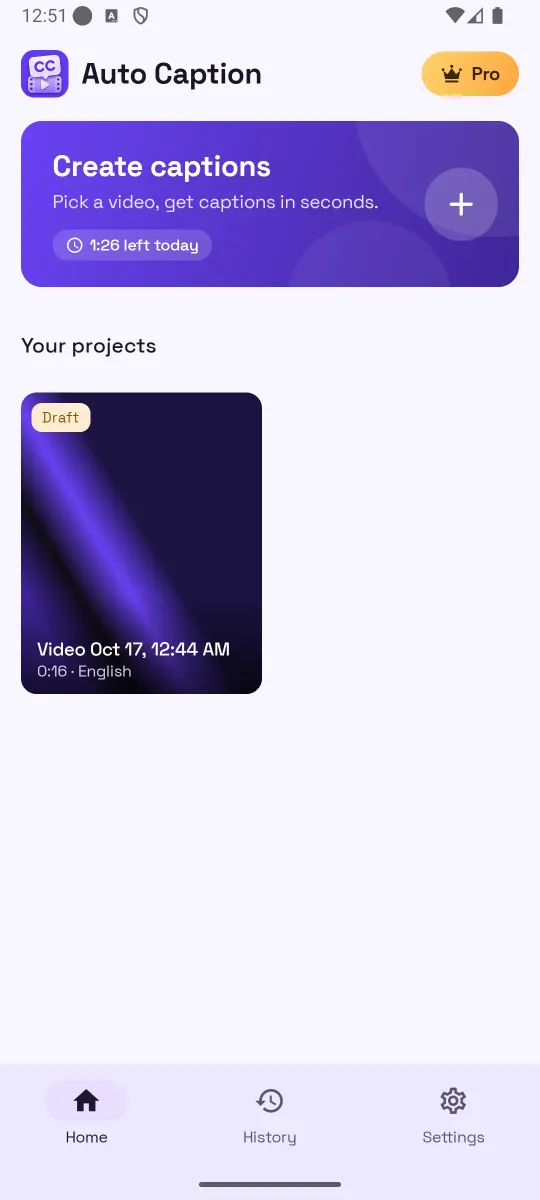
| Limits and pricing | Free: 2 minutes a day, clips up to 60 seconds, 8 templates, ads (a full-screen ad when returning to Home, History or Settings, and an optional rewarded video for +1 minute). Pro: 300 minutes a month, clips up to 10 minutes, all templates, no watermark, no ads. Pro is an in-app subscription; the price is shown in the app and billed through Google Play. |
| Not in 1.0.0 | Translation, clips longer than 10 minutes, an iOS or desktop version. |
Alternatives, honestly
- Typing captions in a video editor. Full control, no quota, works offline. Slow: a one-minute clip can take 15–20 minutes to caption by hand, and there is no word timing.
- The platform's own captions. Free and quick inside Instagram, TikTok or YouTube. Limited styling, and the captions do not travel with the file to other platforms.
- Desktop editors with auto-transcription. Powerful and precise, good for long videos. Needs a computer and a transfer step; overkill for a 30-second Reel.
Common mistakes when choosing
- Judging by the template gallery instead of by a transcript of your own voice.
- Not checking whether SRT export is free.
- Ignoring where the video file goes.
- Buying a yearly plan before captioning a single clip.
Try it on your own clip
AutoCaption is free to start on Android 8.0 and later: 2 caption minutes a day, about 100 spoken languages, SRT export on every plan. Pro is an in-app subscription billed through Google Play.

Frequently asked questions
Is there one best auto caption app for Android?
No single app is best for everyone. The right one depends on your languages, whether you need word-by-word animation, how you publish (burned-in vs SRT) and how much you caption per month. Use the checklist on this page on a real clip of yours.
Are free caption apps good enough?
For short clips, often yes. Expect limits on minutes or clip length, a watermark on video exports, and ads. Check whether the parts you need, for example SRT export or a specific language, are in the free tier or behind the subscription.
Why does word-level timing matter if I only want normal subtitles?
Even for plain subtitles, word timing lets you tap a word to jump to it, keeps line breaks aligned with speech, and gives you the option of word-by-word styles later without re-transcribing.
What should I check about privacy?
Where the video goes. Some apps upload the whole video file; some upload only the audio; some process on the device. Read the privacy policy for what is uploaded, whether it is stored, and for how long.