 AutoCaption
How to add Hindi subtitles to a video on Android
Short answer: Pick Hindi as the spoken language in an auto-caption app that supports Devanagari, generate the captions, fix any Hinglish words the model wrote in the wrong script, and export. In AutoCaption, choose हिन्दी on the Caption setup screen; the captions are written in Hindi and the Devanagari text is drawn correctly in both the preview and the exported video or SRT.
Captions in Hindi, not translated into Hindi
There are two different things people mean by “Hindi subtitles”. One is captions of Hindi speech, written in Hindi. The other is a translation of speech in another language. AutoCaption does the first: captions are always in the spoken language. If you need a translation, caption the video first, export the SRT, and translate the text file separately.
Step by step
- Pick the video in AutoCaption with “Create captions”.
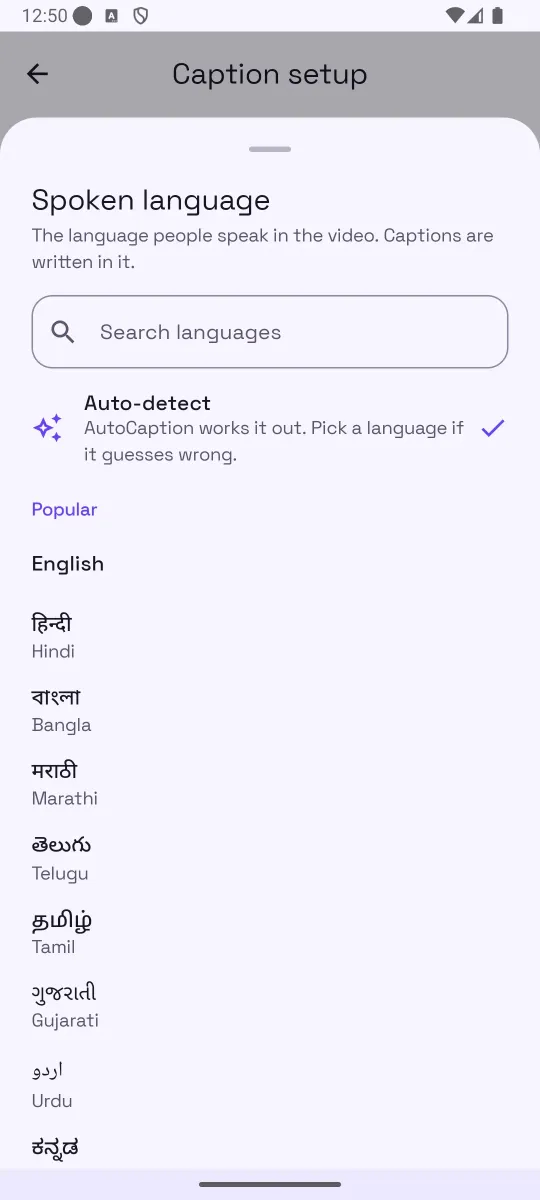
- Tap the Spoken language card on the Caption setup screen. The sheet lists Auto-detect first, then popular languages by their native names: हिन्दी, বাংলা, मराठी, తెలుగు, தமிழ், ગુજરાતી, اردو, ಕನ್ನಡ and more. Search works in English too.
- Choose हिन्दी (Hindi). Picking the language rather than Auto-detect matters most for Hindi: short clips and Hinglish speech can otherwise be detected as English or Urdu.
- Pick a look and generate. Any template works with Devanagari; the text, outline, shadow and box are drawn around the shaped glyphs.
- Read the word strip. Look for English words written in Devanagari (or the reverse) and for names. Fix them in the Edit panel.
- Export. Choose an MP4 with the captions burned in, or an SRT. The SRT is plain UTF-8 text, so Hindi survives the trip to YouTube or a desktop editor.
Tips for Hindi captions
- Choose the language explicitly. It is the single biggest accuracy improvement for Hindi and Hinglish clips.
- Keep lines short. Devanagari words are wider than their English equivalents. Two words per line keeps the text large and the matras readable on a phone.
- Use a bold template with an outline. Headstrokes and matras get lost against busy footage without one. The Bold and Boxed categories work well.
- Check numbers. Decide whether you want “२०२६” or “2026” and make it consistent; the model may use either.
- For Urdu and Arabic, the same flow applies; the app handles right-to-left text in the preview and the export.
Common mistakes
- Leaving Auto-detect on for a 15-second Hinglish clip and getting English captions.
- Using a thin font at a small size, which makes conjuncts hard to read.
- Expecting a translation. Captions follow the speech.
- Opening the SRT in an editor that is not set to UTF-8 and saving it with broken characters. Use a plain text editor or upload the file directly.
How AutoCaption helps
AutoCaption supports about 100 spoken languages and renders Devanagari, Bangla, Tamil, Telugu, Gujarati, Kannada, Urdu and Arabic scripts, as well as Chinese, Japanese and Thai, correctly in both the preview and the exported MP4. Languages are listed by native name, and the default spoken language can be set once in Settings so every new project starts with Hindi.
Try it on your own clip
AutoCaption is free to start on Android 8.0 and later: 2 caption minutes a day, about 100 spoken languages, SRT export on every plan. Pro is an in-app subscription billed through Google Play.

Frequently asked questions
Can AutoCaption translate my English video into Hindi subtitles?
Not in this version. AutoCaption writes captions in the language that is spoken. If the speaker talks in Hindi, the captions are Hindi; if they talk in English, the captions are English. Translation is not part of 1.0.0.
Will Hindi text show as boxes or broken letters?
Not in AutoCaption. Devanagari and other Indic scripts are shaped and drawn correctly in the editor preview and in the exported MP4. The SRT file is saved as UTF-8 text, which YouTube and modern editors read correctly.
What about Hinglish, where people mix Hindi and English?
Pick Hindi as the spoken language. Mixed speech is where automatic models make the most mistakes: an English word may be written in Devanagari, or a Hindi word in Roman letters. Fix those in the Edit panel; it takes a few seconds per word.
Which other Indian languages are supported?
The language list includes Bangla, Marathi, Telugu, Tamil, Gujarati, Urdu, Kannada and more, shown by their native names. About 100 spoken languages are supported in total.