 AutoCaption
How to make word-by-word captions on Android
Short answer: Word-by-word (karaoke) captions need a transcript with a timestamp for every word, not just every line. Use an app that produces word timing, then choose a word effect such as “Word highlight” and a small number of words per line. In AutoCaption, every word is timed automatically; open the Animation panel, pick a word effect, set 1–3 words per line in Layout and choose a highlight color in Colors.
What makes a caption “word-by-word”
Normal subtitles appear a line at a time. Word-by-word captions add a second layer of timing: each word has its own start and end, and the design uses that to emphasize the word being spoken, by changing its color, scaling it, boxing it or popping it in. The effect follows the rhythm of speech, which is why it works so well on fast talking-head clips.
The requirement is in the data, not the design: you need a transcript with a timestamp per word. Auto-caption apps that produce word timing, like AutoCaption, give you that for free as part of transcription. A plain SRT does not contain it.
Step by step in AutoCaption
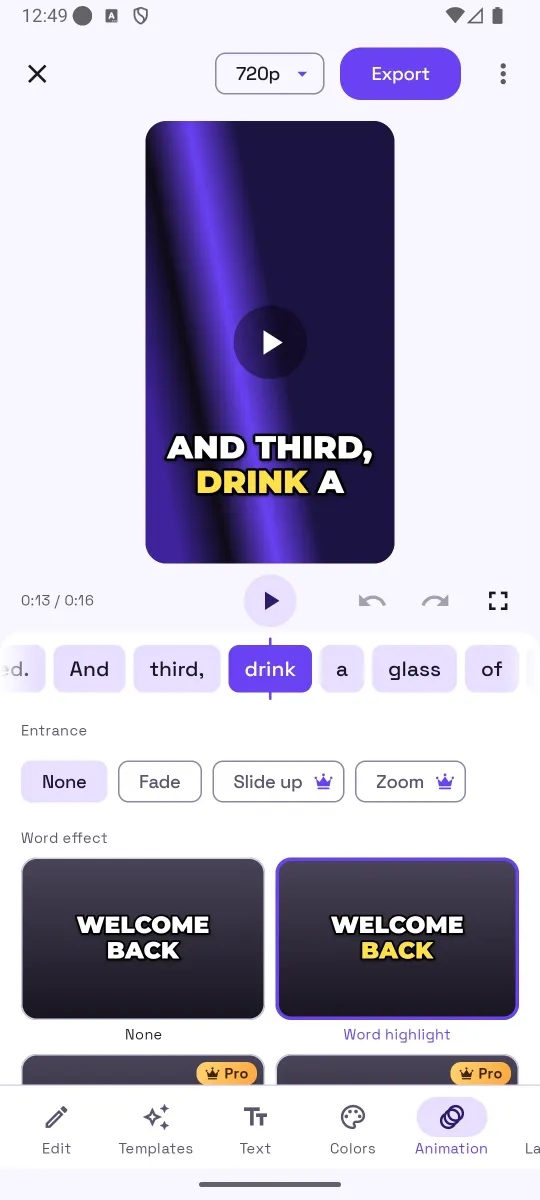
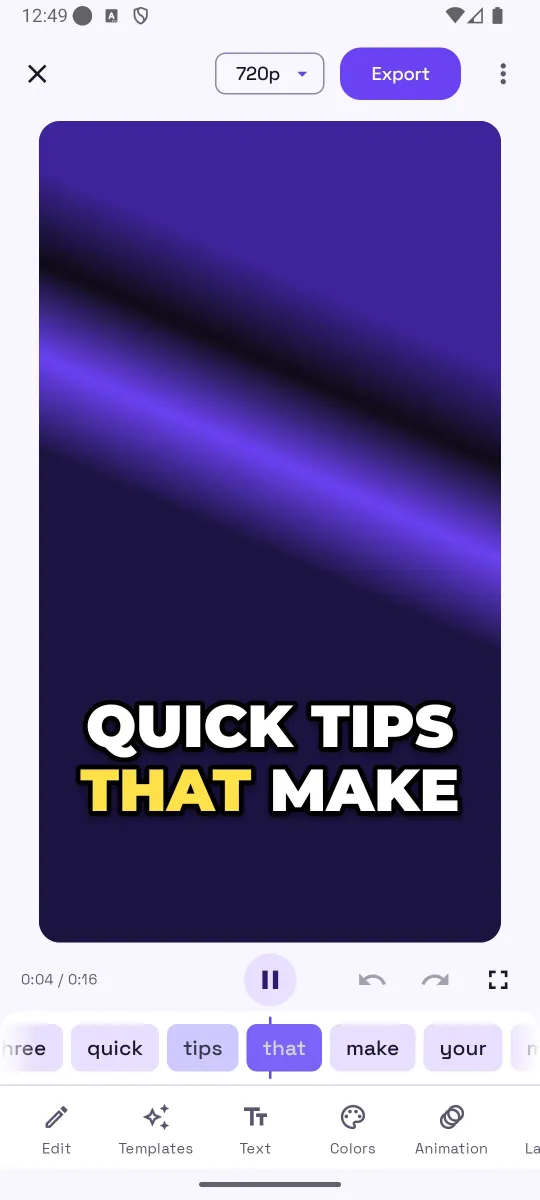
- Generate captions for your clip. The editor opens with a word strip under the player; each chip is one timed word, and the active one is highlighted as the video plays.
- Open the Animation panel. Under “Word effect”, pick Word highlight: the spoken word changes to the highlight color while the rest of the line stays white. Other effects (10 in total) change size or add a box; some are Pro.
- Choose an entrance. None or Fade are free; Slide up and Zoom are Pro. One subtle entrance is enough.
- Set words per line. In the Layout panel, set 1–3 words per line and one or two lines. This is what makes the highlight readable.
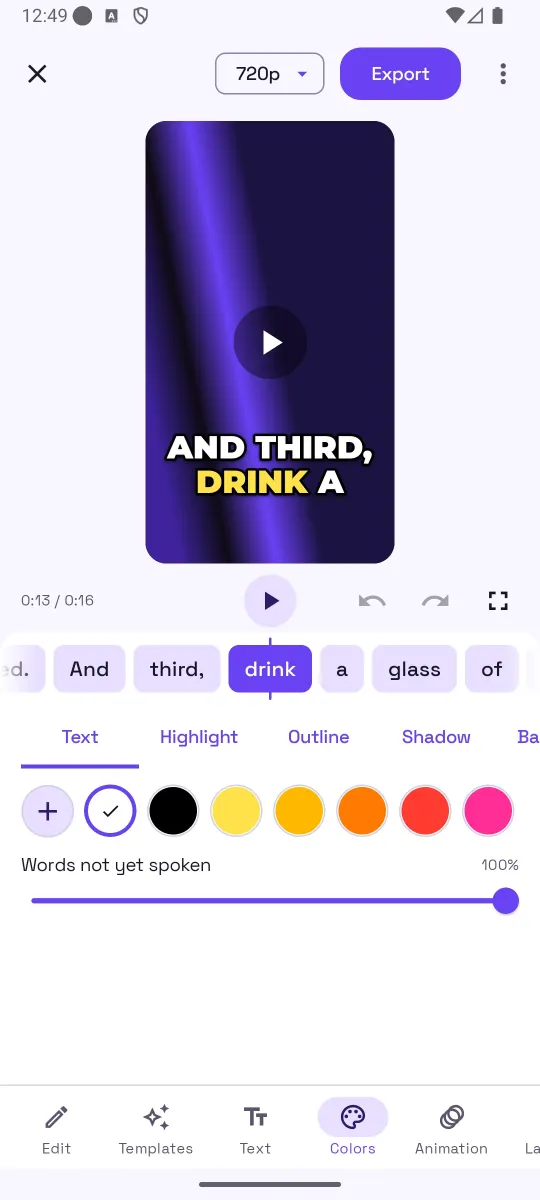
- Pick colors. In the Colors panel set the text, highlight, outline and shadow colors. A warm highlight (yellow, orange) on dark footage is the classic combination; the “Words not yet spoken” slider dims upcoming words if you want a karaoke feel.
- Check the timing on a fast section. If a word lands early or late, fix the line in the Edit panel: split or merge lines so each caption page is a natural phrase.
- Export the MP4. Word effects only exist in the burned-in video; an SRT cannot carry them.
Style tips
- Contrast first. A thick outline or a box behind the text keeps the highlight visible over any footage.
- Keep the block in one place. Moving captions around the frame fights the word animation. Pick a position and keep it for the whole clip.
- Match the highlight color to one accent in the video, or to your brand color, so it looks intentional.
- Use uppercase for short punchy lines and sentence case for longer explanations. The Text panel has a case setting.
- Do not stack effects. A highlight plus a bounce plus a zoom entrance is tiring to watch.
Common mistakes
- Full sentences with a tiny moving highlight.
- Highlight color too close to the text color.
- Expecting word animation in an SRT export.
- Leaving a wrong word in: the highlight draws the eye straight to it.
How AutoCaption helps
AutoCaption times every word during transcription and shows them in a word strip that follows playback and scrubs when tapped. The Animation panel offers 10 word effects and 4 entrances, the Layout panel controls words per line and position, and the Colors panel sets text, highlight, keyword, outline, shadow and box colors. Word highlight is free; the preview and the export use the same engine, so the timing you see is the timing you get.
Try it on your own clip
AutoCaption is free to start on Android 8.0 and later: 2 caption minutes a day, about 100 spoken languages, SRT export on every plan. Pro is an in-app subscription billed through Google Play.

Frequently asked questions
What are word-by-word captions called?
You will see them called karaoke captions, pop-up captions, highlight captions, dynamic captions or animated captions. They all describe the same idea: the current word is emphasized in time with the speech.
Can I make word-by-word captions from an SRT file?
Not directly. SRT files have one time range per caption, not per word. You need word-level timestamps, which an auto-caption app produces during transcription. AutoCaption times every word and shows them in a word strip under the player.
Which word effects are free in AutoCaption?
Word highlight and Box are free, along with the None option. The remaining word effects and the Slide up and Zoom entrances are part of Pro. Pro looks can be previewed in the editor by everyone; exporting them needs Pro.
How many words per line should I use?
One to three. Fewer words means larger text and a clearer highlight. Full sentences with a moving highlight are hard to read at phone size.